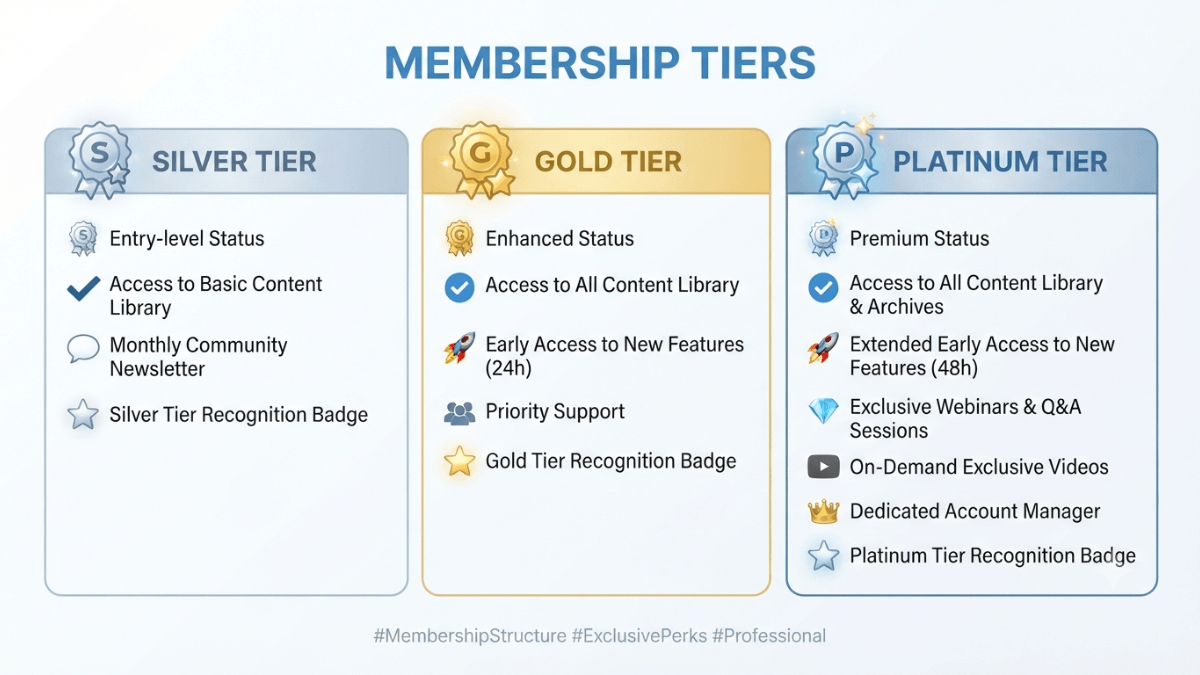
Channel memberships let viewers make monthly payments in exchange for exclusive perks you define — loyalty badges, custom emoji, members-only content, and more. They require YouTube Partner Program (YPP) membership from the 500-subscriber expanded tier, Commerce Product Module (CPM) acceptance, and residence in an eligible country. The creator's revenue share is 70% after taxes and fees. You can create up to 6 membership levels at different price points.
| Aspect | Details |
|---|---|
| Minimum subscribers | 500 subscribers (expanded YPP) in eligible countries |
| Contract module required | Commerce Product Module (CPM) — separate from YPP acceptance |
| Creator revenue share | 70% after local sales taxes and other applicable fees |
| Number of levels available | Up to 6 levels — each level must have 1 to 5 perks |
| Review time after YPP acceptance | May take up to 2 days before the Memberships tab appears |
| Geographic restriction? | Yes — specific eligible countries |
Key takeaways:
- Per YouTube's channel memberships activation page, the Memberships feature may not be available immediately after YPP acceptance — the channel undergoes a review that can take up to 2 days.
- Per YouTube's channel memberships overview page, prohibited perks include: downloading YouTube content, in-person 1:1 meetings, contests and lotteries, and perks directed at children.
- Turning off channel memberships cancels all current members and does not save levels — if you re-enable, viewers must subscribe again voluntarily.
- If a channel's membership program stays in "paused mode" for more than 120 days, memberships are automatically canceled and member refunds are deducted from the creator's AdSense account.
- Videos set as Made for Kids or videos with music claims are considered ineligible — a significant number of these on your channel may affect your eligibility for channel memberships.
What are the full eligibility requirements for channel memberships?
According to YouTube's channel memberships overview page, the following conditions must be met (verify current requirements before acting):
- Meet the minimum requirements for fan funding features — be in YPP (from 500 subscribers) and accept the Commerce Product Module (CPM)
- Live in one of the available locations — the full list is on the official page
- Channel must not be set as Made for Kids and must not have a significant number of videos set as Made for Kids
- Channel must not have a significant number of ineligible videos — videos set as Made for Kids or videos with music claims are considered ineligible
⚠️ Music claims affect channel memberships eligibility
Per the official eligibility page, videos with Content ID music claims count as ineligible videos. If a significant portion of your channel's videos carry music claims, this may affect your eligibility for channel memberships — even if you are in YPP. Some music channels (such as those under SRAV contracts) are not currently eligible.
How do you design membership levels and perks?
According to YouTube's membership levels and perks management page, you can create up to 6 membership levels at different prices. Each level must have between 1 and 5 perks. Higher-priced levels automatically include all perks from lower-priced levels — perks stack upward.
Permitted perks
Per the official page, you can offer perks that make members feel special, including:
- Loyalty badges: 8 badge types reflecting active membership duration — use default YouTube badges or upload custom ones
- Custom emoji
- Members-only posts and content
- Members-only videos — anyone can see the video exists but only members can watch it
- Members-only live chats
- Early access to content
Prohibited perks
Per the official eligibility page, the following perks are explicitly not allowed:
- Downloads of any content (including music) available on YouTube
- In-person 1:1 meetings
- Anything given to some but not all members at random — contests, lotteries, sweepstakes
- Perks directed at, marketed to, or inappropriate for children
⚠️ Perks are reviewed before they go live
Per YouTube's Help Center, YouTube reviews your levels and perks against membership policies before they can go live. This review process takes about a day. Plan your perk rollout with this delay in mind.
How is channel memberships revenue calculated?
According to YouTube's channel memberships analytics page and YouTube partner earnings overview, creators receive 70% of memberships revenue after applicable taxes and fees are deducted (depending on country/region and the user's platform). Transaction costs including credit card fees are currently covered by YouTube.
If you are part of an MCN, consult your network — some MCNs take an additional revenue share from memberships. Revenue is paid through AdSense for YouTube within the standard payment cycle. For a full comparison of all monetization methods, see our YouTube monetization guide and for memberships in the context of live streaming, see our live stream monetization guide. If a member receives a refund, the creator's share is deducted from their AdSense account.
How do you enable channel memberships step by step?
📋 Activation steps
- Open YouTube Studio and go to Earn.
- Click the Memberships tab — it will only appear after the eligibility review (may take up to 2 days after YPP acceptance).
- If this is your first time, follow the on-screen instructions to sign the Commerce Product Module (CPM).
- Under "Step 1: Add levels and perks," add your first level and define its perks — each level requires at least one perk.
- Publish your membership program — perks will go through YouTube's review process (approximately one day).
What is "paused mode" and how does it affect members?
According to YouTube's official page, a channel memberships program enters "paused mode" when: the channel violates monetization policies, is set as Made for Kids, changes MCNs, or loses monetization access.
In paused mode: monthly member payments pause, the Join button disappears, and members lose access to perks. Paused mode does not automatically cancel memberships — but if the channel remains in paused mode for more than 120 days, memberships are automatically canceled and members receive refunds deducted from the creator's AdSense account.
Common mistakes when setting up channel memberships
❌ Mistake 1: Turning off memberships expecting levels to be preserved
Per YouTube's Help Center, turning off channel memberships cancels all current members immediately and does not save levels or perks. If you re-enable memberships later, viewers must subscribe again voluntarily — you start from zero. This is irreversible, so pause mode (triggered by platform issues) is different from voluntarily turning memberships off.
❌ Mistake 2: Offering contests or giveaways as membership perks
Per YouTube's membership policies, anything given to some but not all members at random — contests, lotteries, sweepstakes — is explicitly prohibited as a perk. All perks must be delivered equally to all members at the qualifying level. Violating this can result in perk removal or membership program termination.
❌ Mistake 3: Expecting the Memberships tab to appear immediately after joining YPP
Per YouTube's Help Center, the Memberships tab may not appear in YouTube Studio immediately after YPP acceptance — the channel undergoes an eligibility review that can take up to 2 days. If the tab still doesn't appear after 2 days, review the eligibility criteria to identify which condition may not be met.
Frequently asked questions
Can channel memberships be enabled without 1,000 subscribers?
Yes. Per YouTube's expanded YPP overview page, channel memberships are available from the expanded YPP tier starting at 500 subscribers in eligible countries (with 3 public uploads in 90 days and 3,000 watch hours in 12 months, or 3 million Shorts views in 90 days). The 1,000-subscriber threshold applies only to ad revenue — memberships, Super Chat, and Super Thanks are all available from 500 subscribers in expanded YPP countries.
Can membership perks be changed after the program launches?
Yes. Perks can be modified after launch, but any change goes through a new YouTube review before going live. Keep in mind that you are committed to delivering the perks you have promised members — significantly reducing perks after members have subscribed may lead to cancellations and could result in refund requests deducted from your AdSense account.
What happens to members if YPP is revoked?
Per the official page, if YPP is revoked the membership program enters paused mode — monthly payments pause and members lose access to perks. If the channel does not exit paused mode within 120 days, memberships are automatically canceled and members receive refunds for their last payment, deducted from the creator's AdSense share.
Can early access to videos be offered as a membership perk?
Yes. Early access to content is a permitted membership perk per YouTube's policy. You can upload a video as members-only content and then switch it to public later — this is a common and permitted perk structure. Ensure the video complies with Community Guidelines in both states (members-only and public).
Where do you track membership revenue and member statistics?
Per YouTube's Help Center, membership data is available in two places: YouTube Studio → Earn → Memberships shows total members, active members, revenue from the last billing period, members by level, and sign-ups and cancellations. YouTube Analytics → Revenue provides additional detail including comparison across time periods.
Official sources
- YouTube Help — Get started with channel memberships: eligibility, policies, prohibited perks
- YouTube Help — Turn channel memberships on or off (2-day review note)
- YouTube Help — Create or manage membership levels and perks (up to 6 levels, 1–5 perks each)
- YouTube Help — Analyze and manage your channel memberships program (70% revenue share)
- YouTube Help — Expanded YouTube Partner Program (memberships available from 500 subscribers)