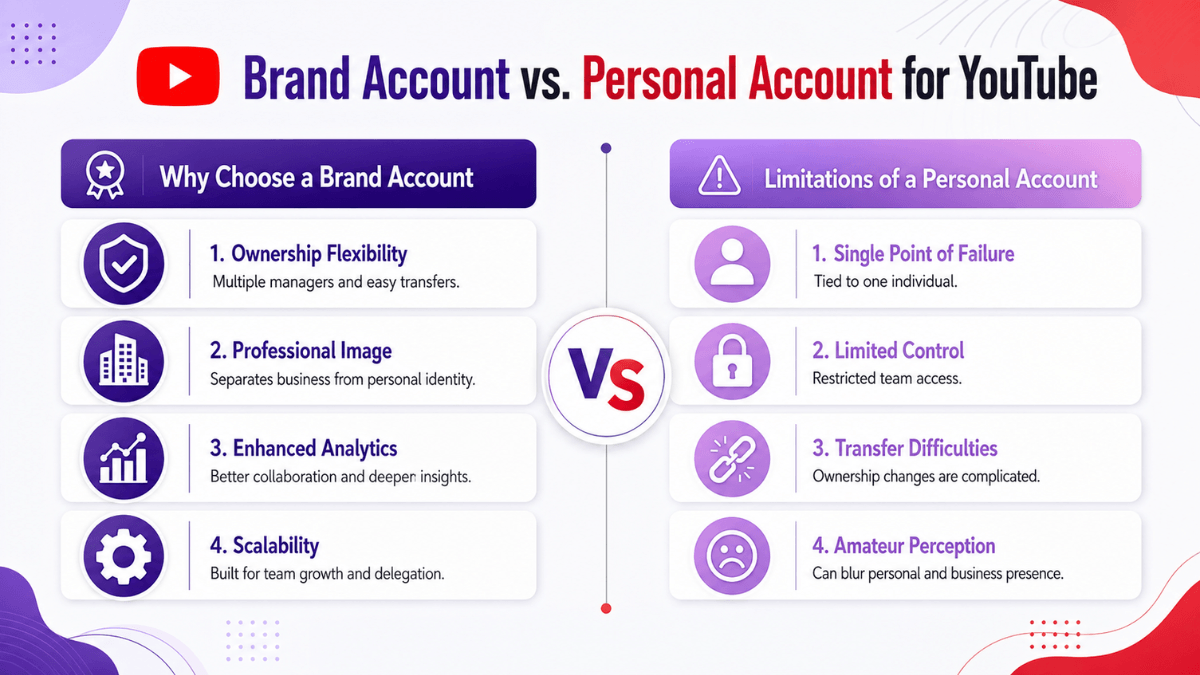
Direct answer: creating the channel takes five minutes: sign in with a Google account, create the channel, pick a name and a handle. The decisions worth time are the three around it. What the channel is about (one question answered for a specific audience), whether you need a Brand Account rather than a personal one (yes, if anyone else will help manage it), and which settings to configure once so you never repeat them. Verification, meanwhile, is two different things: phone verification unlocks advanced features and you can do it today, while the grey verification badge is something else tied to channel size.
- A Brand Account allows more than one manager; a personal account does not.
- The handle is 3 to 30 characters and can be changed; the channel name is a separate field.
- Phone verification unlocks advanced features; the verification badge is a different thing entirely.
- The audience setting (made for kids?) is mandatory and affects comments and notifications.
- Upload defaults are set once and applied to every video afterwards.
Before you click "Create channel"
Three decisions make everything after them easier. Each has a full page if you want depth:
- Topic: you don't need a market study, but you do need to know what your first ten videos are about. The decision method is in how to choose a YouTube niche.
- Name and handle: the name is what people see; the handle is your channel URL (youtube.com/@yourhandle). Read YouTube channel name ideas and handle rules before you claim something awkward to change.
- A basic look: a clean profile picture and a simple banner are enough to launch. The official sizes are in the YouTube channel branding guide.
In practice, if you're torn, start a personal channel under your own name plus your topic. Both name and handle can be changed later (twice in a 14-day period each, per YouTube's channel profile page), so hesitation isn't a reason to delay.
The criteria for choosing a topic
Before the name and the logo comes the question that determines everything after it: what is the channel about, and for whom. These criteria turn that from a matter of taste into a decision.
The five criteria (with a quick scoring table)
Score each candidate topic from 1 to 5 on every criterion. A topic that scores below 2 anywhere will usually wear you down within three months.
| Criterion | The question it answers | Warning sign |
|---|---|---|
| Interest | Can I talk about this across 50 videos without going flat? | You cannot write 20 titles right now |
| Ability | Do I have knowledge, experience, or a willingness to learn in public? | You would be reworking other people's videos |
| Demand | Are people actually searching for these questions? | No search suggestions and no recent videos |
| Competition | Is there an angle or a sub-audience nobody serves well? | You would copy large channels from the same angle |
| Monetization fit | Does the topic suit the routes I want (ads, memberships, products, sponsorships)? | Content that is hard to keep advertiser-friendly or that policies restrict |
An important note on that last criterion: YouTube publishes monetization policies and advertiser-friendly guidelines, but it does not publish earnings by topic. Your assessment here is qualitative: does this topic let you build a full offer over time (free content plus memberships, products or services)? Do not pick a topic because someone online said its CPM is high.
Topic and format are different decisions
A common mistake is saying "my niche is reviews" or "my niche is vlogs". Reviews, tutorials, vlogs, list videos and challenges are formats, and any of them can be applied to any topic. The real decision is a combination: a topic (say, English for absolute beginners) times a main format (short lessons) times a secondary format (live question sessions). Fix the topic and vary the formats inside it. Formats, content types and how to organise them into a plan are covered in the the YouTube content ideas guide.
Validating demand and competition
Validating demand with YouTube's own tools
You do not need paid tools at this stage. Three free steps:
- YouTube search suggestions: type your topic into the search box and read the autocomplete. Try it in the languages your audience mixes, since many Gulf viewers search in both Arabic and English. Suggestions are a signal that people phrase things this way, not a precise demand number.
- The Trends tab in YouTube Analytics: per YouTube's "Get started with YouTube Analytics" page, this tab is where you explore what your audiences are viewing and discover content gaps for your next video. It becomes genuinely useful once you have published a few videos and have data of your own.
- The Inspiration tab on the Content page in Studio: it generates ideas, titles, thumbnails, hooks and outlines with AI assistance, based on your channel's data (nine ideas when you open it, with the option to load more). The official limits as of 19 August 2026: it is available in all global markets but only on desktop, it can only give ideas in English, and YouTube itself warns that outputs may be inaccurate and do not represent its views. Use it to brainstorm, not to decide.
Add a manual competitor pass: open five channels in the topic and sort their videos by most popular. Topics that recur across different channels are the ones the audience keeps asking for, and a video that worked on a small channel is a stronger signal than the same video working on a huge one.
Reading competition without flinching
Large channels in your topic prove an audience exists; they are not a reason to run. The question is not "is this crowded?" but "which part of it is underserved for my language, my dialect, or my audience's level?". Angles that work: the absolute beginner instead of a general audience, the local market instead of the global one, a limited budget instead of a professional setup, or a documented step-by-step attempt instead of theory. One clear angle usually beats hunting for a brand new topic.
Examples of topic families, narrowed down
These illustrate how a broad category becomes an executable niche. They are not recommendations and not an earnings ranking. The long list of channel concepts is in YouTube channel ideas.
- Education and skills: from "learn to code" to "small Python projects for high-school students, in Arabic".
- Personal finance: from "investing" to "setting up a monthly budget as a new employee in the Gulf", with no return promises.
- Food: from "recipes" to "fast meals for a student living alone on a tight budget".
- Gaming: from "gaming" to "advanced guides for one game, with round-by-round analysis".
- Family and parenting: from "motherhood" to "at-home activities for pre-school children", keeping the made-for-kids audience setting in mind.
- Small business: from "e-commerce" to "running a home-based shop: orders, packing, shipping".
- Travel: from "travel vlogs" to "weekend road trips from Riyadh on a family budget".
Test the decision before you commit
- Write 20 video titles in the candidate topic within 30 minutes. If you stall at ten, reconsider.
- Pick five of them and write the first sentence you would say in each. If they all sound the same, the topic is too narrow or you have not found your angle.
- Publish your first five to eight videos, then compare their performance against each other. Video-level ideation is covered in YouTube video ideas.
- Never judge a topic on one video or one week. Judge it on a batch.
Once the decision is made, the next step is creating and setting up the channel in your first week. All of this sits inside the YouTube content and production guide.
The official creation steps
According to YouTube Help's "Create a YouTube channel" page, a Google Account alone lets you watch, like and subscribe; uploading, commenting and making playlists require a channel. For a personal channel:
- Sign in to YouTube on a computer or the mobile site.
- Click your profile picture, then Settings.
- In the Account section, select Add or manage channel(s).
- Click Create a channel.
- Choose a profile picture, type your name and handle.
- Click Create channel.
The "Get started" page on YouTube for Creators condenses this into five steps in the same order, then moves straight to "channel basics" inside YouTube Studio: click Customize channel, upload a banner, add a profile picture, write a description that says what viewers can expect, and optionally add links and a contact email. One official caveat: if you use YouTube with a supervised experience, you may not be able to create a channel.
On the handle specifically: YouTube's handles page says every channel has exactly one handle, it's 3 to 30 characters in most scripts, and in some creation paths (such as creating a channel by posting a comment on mobile) YouTube may auto-assign one from your channel name. You can view and edit it in Studio or at youtube.com/handle.
Personal channel or Brand Account?
The difference isn't looks or features. It's who manages the channel. The official creation page describes two paths: a "personal channel" that only you can manage, and a "channel with a business or other name" that can have more than one manager or owner and connects to a Brand Account. YouTube's Brand Account page defines it as a Google account for your business or brand; once your channel is linked to one, multiple people can manage it from their own Google Accounts.
- Choose a personal channel if you're the only person who will upload, edit and reply to comments, or if the channel is you.
- Choose a Brand Account if the channel belongs to a shop, company or team, or you expect an editor or account manager to help later. To create it: from your channel list choose "Create a new channel", or pick a Brand Account you already manage (if it already has a channel, you can't create a second one on it).
In practice, even on a Brand Account channel, roles are now handled through channel permissions in YouTube Studio (Owner, Manager, Editor, Viewer and limited variants), and YouTube itself recommends migrating to permissions rather than sharing passwords. Roles and access levels are covered in the YouTube channel settings guide; here you only need the decision.
The name and the handle
The name and the handle are two different fields that get confused constantly: names can repeat across channels, while the handle is unique and appears in your channel URL.
Name versus handle
YouTube's handles page defines a handle as a short, unique channel identifier that starts with the @ symbol and is distinct from your channel name. You see handles in comments, mentions, Live Chat and Shorts, and your handle automatically becomes your channel URL in the form youtube.com/@yourhandle. The channel name, by contrast, is the display text on your channel header and under your videos, and it can include spaces and characters a handle will not accept.
So you make two decisions in one sitting: a name a human reads, and a handle a human types. "Weeknight Plates" is a clear name; the handle behind it might be @weeknightplates. What matters is that the link between the two is obvious.
Five tests for a name that lasts
- Say it and spell it. If you have to spell the name every time you mention it out loud, it is the wrong name. Test it: say it to someone and ask them to write it down.
- Signal the topic. You do not need a literal description, but one meaningful word helps a first-time viewer understand the channel before watching. Picking the topic itself is covered in how to choose a YouTube niche.
- Leave room to grow. A hyper-specific name ("iPhone 14 Reviews") becomes a liability within a year. Slightly broader ("The Spec Sheet") survives your own expansion inside the topic.
- Be distinct. Search the name on YouTube and on the web before you commit. YouTube states plainly that it will not verify channels trying to impersonate another creator or brand, and that it may take further action against deliberate impersonation.
- Fit the rest of the identity. YouTube's own banner and profile picture tips say your brand starts with your channel name and extends to your channel visuals. Choose something that can become a readable profile picture; the specs are in the YouTube channel branding guide.
If the name matches someone else's registered trademark or an existing shop, that is a legal question specific to your country and we do not give advice on it. Check with a specialist before you build a full identity on the name.
Handle rules and changing them
The official handle rules (as of 19 August 2026)
Straight from YouTube's handles page, so you do not burn twenty attempts on rejected handles:
- Between 3 and 30 characters, with exceptions for some scripts (Han and Hangul 1 to 10, Ethiopic, Hiragana and Katakana 2 to 20). Mixed-script handles may have different minimums and maximums.
- Letters or numbers from one of 75 supported languages. Arabic is on the supported list.
- Handles are not case-sensitive. They may include underscores (_), hyphens (-), periods (.) and Latin middle dots, but not at the beginning or end.
- Left-to-right scripts cannot be mixed with right-to-left scripts in a single handle, except when numbers are added at the end.
- The handle must not be URL-like or phone-number-like, must not already be in use, and must follow the Community Guidelines.
- YouTube does not allow violent, offensive or spammy handles, nor the sale or transfer of handles. It reserves the right to change, reclaim or remove a handle, and if a handle violates the Community Guidelines it will revoke it and generate a new one for the channel.
- In some creation paths, such as creating a channel by posting a comment on mobile, YouTube may auto-assign a handle based on your chosen channel name, or a random one if the name cannot be converted. You can always view and edit it in YouTube Studio or at youtube.com/handle.
- Legacy personalized URLs keep working, and viewers can search for you by typing @ followed by your handle.
Changing your name or handle later
The official rules, from YouTube's channel profile page:
- Channel name: changeable twice within a 14-day period, in YouTube Studio under Customization, then Profile, then Publish. The new name can take a few days to display across YouTube. Changing your YouTube channel name and picture affects YouTube only, not your Google Account name. If the update will not save, delete any channel-name translations first.
- Verification badge: changing the channel name removes the badge and you have to reapply. Changing the handle does not affect it. This is the detail most creators get wrong.
- Handle: changeable twice within a 14-day period, from the same Customization screen or at youtube.com/handle.
- Translations: you can add translated versions of your channel name and description for other-language audiences instead of replacing the main name.
In practice, make one considered change rather than a run of experiments: the ceiling is roughly four changes a month across name and handle, and every change disorients the audience you already have. The rest of the naming, verification and permission settings live in the YouTube channel settings guide.
Name ideas
Name ideas by niche
These are naming patterns, not reserved names. Borrow the shape, swap in your own word, then check availability on YouTube and check that a close handle is free.
Tech and gear
- Plainly Tech
- The Spec Sheet
- Setup Notes
- Two Tabs Open
- Bench and Board
- Everyday Firmware
Food and cooking
- Weeknight Plates
- Small Pan Kitchen
- One Tray Meals
- Low Heat Lab
- Pantry First
- Dorm Room Dinners
Gaming
- Last Round Review
- Lobby Notes
- Practice Range
- Patch Day
- Second Controller
Learning and skills
- Explain It Once
- Ten Minute Basics
- Study Desk
- Chalk and Cursor
- Before the Exam
Money and small business
- Budget Sheet
- Ledger Notes
- Small Shop Diaries
- First Paycheck
- Order to Doorstep
Family, home and craft
- Before School Hours
- Kitchen Table Projects
- Thread and Needle
- Garage Workshop
Travel and fitness
- Short Trip Log
- Carry On Only
- Weekend Road Notes
- No Gym Needed
- Twenty Minute Sets
If you want a personal brand, the safest pattern is your name plus a topic word. It gives you enough distinctiveness, keeps the handle easy to claim, and does not box you in.
If your channel is in Arabic
Arabic names and Arabic-script handles are both supported, and Arabic naming has its own patterns rather than translated English ones: short, concrete phrases such as مطبخ خمس دقائق ("five-minute kitchen"), دفتر المصاريف ("the expenses notebook") or طريق نهاية الأسبوع ("the weekend road"). Two cautions come from YouTube's own page. First, people without an Arabic keyboard may not be able to type your handle to search for you. Second, some apps and websites outside YouTube may not display a non-Latin youtube.com/@handle link correctly, so it can appear broken; the URL is also copied in percent-encoded form, and sharing may fall back to the numeric channel-ID URL. A practical split many bilingual creators use: an Arabic display name with a Latin-script handle, which the rules allow because the two are separate fields.
The first 7 settings after creation
This is an overview of your first session in YouTube Studio. Verification and the audience setting, the two items that cause the most confusion, each get their own section further down.
- Verify your phone number. Per YouTube's "Verify your YouTube account" page, you receive a code by text or voice call, and verification unlocks uploads longer than 15 minutes, custom thumbnails, live streaming and appealing copyright claims. One number can be linked to no more than two channels per year, so don't experiment across accounts.
- Understand feature levels. The feature-access page describes standard features (immediately, as long as you have no active Community Guidelines strikes), intermediate features (after phone verification) and advanced features (through sufficient channel history, or by verifying with an ID or video). Check yours in Studio under Settings, Channel, Feature eligibility.
- Set your audience. YouTube requires every creator to declare whether content is made for kids, at the channel level or per video, even if you never make kids' content. Path: Settings, Channel, Advanced settings, Audience.
- Name, description and links. Under Customization, then Profile: a description that explains what you publish, and up to 14 links, the first of which shows next to the Subscribe button.
- Profile picture and banner. A clean design at the right sizes is enough; see the branding page above.
- Upload defaults. Set your default language, category, visibility and comment settings once so you don't repeat them on every upload.
- 2-Step Verification on your Google Account. Not required to create a channel, but it protects the channel from day one and is also one of the conditions for applying for the verification badge later.
Verification and the badge: two different things
Verification: phone verification versus the badge
This is the most common confusion in YouTube's settings, and it deserves a table:
| Aspect | Phone verification | Channel verification badge |
|---|---|---|
| Requirement | A phone number that receives a text or a call | 100,000 subscribers, 2-Step Verification, complete profile |
| What you get | Videos over 15 minutes, custom thumbnails, live streaming, appealing copyright claims | A check mark beside the name, and no additional features |
| Where | youtube.com/verify, or when a feature prompts you | Settings, Channel, Verified badge, Apply |
| Who can do it | The account holder | Channel owners or managers only |
| What removes it | Not applicable | Changing the channel name (not the handle) |
Phone verification: YouTube sends a code by text message or voice call. The official page also notes that a number can be linked to no more than two channels per year, and that some carriers do not support Google texts or calls, in which case try the other option or a number from a different carrier.
The badge: three official conditions, all required: 100,000 subscribers, 2-Step Verification turned on for your Google Account, and a complete profile including a banner image, profile picture, description and at least one public video. If the Verified badge tab does not appear, you are not yet eligible on the subscriber requirement. YouTube states plainly that verified channels get no extra features, that the badge is not an award, milestone or endorsement, that it sometimes proactively verifies channels with fewer than 100,000 subscribers when they are well known off YouTube, and that it will not verify channels attempting to impersonate another creator or brand.
If you are below the threshold, the same official page suggests other ways to stand out: a distinctive name and handle, a high-quality profile picture, and a customized channel layout and branding. The specs for those are in the YouTube channel branding guide.
Feature levels and eligibility
YouTube's feature-access page splits access into three levels:
- Standard: yours the moment you create a channel, as long as you have no active Community Guidelines strikes. It covers uploading videos and Shorts, creating playlists and the Posts tab, at lower daily limits.
- Intermediate: after phone verification. It unlocks videos longer than 15 minutes, live streaming on a computer, custom thumbnails and creating a podcast.
- Advanced: through sufficient channel history, which usually qualifies you automatically, or by verifying with a valid ID or a video. It unlocks Content ID appeals, embedding live streams, applying for monetization (with its own separate eligibility requirements), clickable links in long-form descriptions and posts, adding a Related Video to a Short, pinning comments, RSS upload, chapters, adding additional channels to your account, and A/B testing.
Two official notes: some features carry daily limits, and if you already have advanced access and hit one, you wait 24 hours; and ID or video verification is not available to all creators. Check your own level under Settings, Channel, Feature eligibility, where enabled features are marked as such.
The audience setting
The audience setting (made for kids)
This one is not optional. YouTube states that regardless of your location, every creator is required to tell it whether videos are made for kids, that this stems from a settlement with the US Federal Trade Commission and the New York Attorney General, and that it relates to the Children's Online Privacy Protection Act (COPPA) and other applicable laws.
- At channel level: Settings, Channel, Advanced settings, Audience, then one of three choices: yes this channel is made for kids, no it is not, or "I want to review this setting for every video".
- At video level: on the Basic info tab during upload, or as a bulk edit from the Content page. Video-level settings override the channel setting.
- If you skip it: certain restrictions apply to your channel, and per the official page you may face compliance issues with the FTC or other authorities.
- YouTube can override you: it uses machine learning to identify content clearly directed at young audiences and may override your choice in cases of error or abuse, with an appeal available. It also warns you not to rely on its systems to set the audience for you.
In practice, marking an entire channel as made for kids disables features such as comments and the video watermark, so do not pick it simply because your content is family-friendly.
Permissions and Brand Accounts
If an editor or a manager helps you, the official route is channel permissions in YouTube Studio: Settings, Permissions, then Invite by email with an access level. YouTube's page says outright that this is safer than sharing your password or other sign-in details, and that it lets you control who can view or update what.
- Owner: everything, including deleting the channel, managing live streams and chat, and managing permissions. Ownership cannot be transferred to another user from here.
- Manager: everything except deleting the channel, and can manage permissions.
- Editor: can edit, upload, publish and manage live streams, but cannot delete the channel or published content and cannot manage permissions.
- Editor (Limited): the same as Editor without access to revenue data.
- Subtitle Editor: can add, edit, publish and delete subtitles only.
- Viewer and Viewer (Limited): read-only, with the limited variant excluding revenue data.
If your channel is linked to a Brand Account, YouTube recommends migrating to channel permissions: control shifts from Brand Account role delegation to permissions inside Studio, and access is then managed exclusively through YouTube Studio. Existing Brand Account users are copied over, but you must set each level and send the invite yourself, and invited people can manage the channel on YouTube and in Studio on computer and mobile but not through the APIs. One official warning worth underlining: if you delete the primary owner account linked to your channel, the channel is deleted too.
All of this belongs to the launch sequence described in the guide to starting a YouTube channel, inside the YouTube content and production guide.
Your first-week checklist
The goal of week one is not growth. It's breaking the publishing barrier and setting a simple routine.
- Day 1: create the channel, verify your phone, set the audience, add a provisional picture and description.
- Day 2: write titles for your first 5 to 10 videos inside one topic. If you can't get to ten, that's a signal the topic needs another look before you film.
- Days 3 and 4: film and edit the first video with the simplest tools you own. Technical quality improves by video five, not video one.
- Day 5: upload it and set title, description, thumbnail and visibility. The upload flow and file requirements are in how to upload your first YouTube video.
- Day 6: open the YouTube Studio app on your phone, reply to any comment, and look at how your channel appears to a non-subscriber.
- Day 7: decide a publishing rhythm you can hold for a full month (weekly, for example) and state it in your channel description or banner.
This framework is part of the YouTube content and production guide, which collects the planning, filming, editing and publishing pages in one place.
Where to go from here
Once the channel exists the practical questions start, and each has a page that owns it:
- Channel branding: banner, profile picture and watermark sizes.
- Content ideas: from the channel idea to a publishing plan.
- Making the video: scripting, filming and gear.
- Editing: the workflow and choosing software.
- Uploading: the steps, the specs and upload defaults.
- Shorts: the short format and how it differs.
Realistic expectations
Creating a channel is free and quick; building one isn't. In practice, the first couple of months are for learning your tools and finding out what your viewers respond to, not for hitting a number. YouTube publishes no recipe for how many videos it takes or how long growth takes, and any promise of a specific result in a specific time should be treated with caution. What YouTube offers officially is the tooling: YouTube Studio on desktop and mobile to track performance, reply to comments and manage videos, and it's also where you'll later see progress toward YouTube Partner Program eligibility.
Common beginner mistakes
- Living in setup mode: weeks on a logo and intro before a first video. Viewers judge the video, not the logo.
- Creating several channels at once: one channel with a clear topic is easier to run, and one phone number verifies at most two channels a year.
- Ignoring the audience setting: the made-for-kids declaration is mandatory, and setting it wrongly can disable features such as comments and, per the official page, create compliance problems.
- Sharing your password with helpers: use channel permissions in YouTube Studio instead.
- Tying the launch to earnings: monetization has specific, dated requirements covered on their own pages; none of it is tied to creation day.
Frequently asked questions
How much does it cost to create a YouTube channel?
Nothing. Creation is free with a Google Account. The only optional cost is gear and software, and you can start with a phone.
Can I create a YouTube channel on my phone?
Yes. The official page describes creation on a computer or "the mobile site", and after creation you can manage the channel from the YouTube Studio mobile app.
Do I need a phone number to start a channel?
Creation needs a Google Account. Phone verification is what unlocks the intermediate features (videos over 15 minutes, custom thumbnails, live streaming). YouTube notes you may also be asked to verify when you sign up.
How do I start a YouTube channel and get paid?
Those are two separate stages. Start with the steps on this page; monetization comes when you meet the dated YouTube Partner Program requirements and policies, which YouTube Studio tracks for you.
Can I make a second YouTube channel?
Yes. From Settings, "Add or manage channel(s)" lets you create additional channels on the same Google Account, typically as Brand Account channels. Adding channels is listed among the features that depend on your access level, so check Feature eligibility in Studio if the option is missing.
Practical summary
- Create the channel today from a Google Account; the official flow is six steps and free.
- Choose personal or Brand Account based on who will manage it, not on appearance.
- Verify your phone, set the audience, and complete name, description and picture in your first session.
- Publish a first video within a week and commit to a rhythm you can hold for a month.
- For every later stage of the channel, browse the YouTube Resource Hub.
Official sources
- Create a YouTube channel (YouTube Help): personal and business-name channel steps, supervised-experience note (read 19 August 2026).
- How to Start & Manage Your YouTube Channel (YouTube for Creators): five-step creation, channel basics, Studio app (read 19 August 2026).
- Learn about YouTube handles: one handle per channel, 3 to 30 characters, auto-assignment (read 19 August 2026).
- Brand Accounts and channel permissions: Brand Account definition and permissions managed in YouTube Studio (read 19 August 2026).
- Verify your YouTube account: what phone verification unlocks and the two-channels-per-number-per-year limit (read 19 August 2026).
- Learn about feature access for YouTube Creators: standard, intermediate and advanced levels; Feature eligibility (read 19 August 2026).
- Set your channel or video's audience: mandatory made-for-kids declaration at channel or video level (read 19 August 2026).
- Explore Inspiration tab on YouTube: what the tool does, desktop-only availability, English-only ideas, and the accuracy warning (read 19 August 2026).
- Understand your YouTube audience: monthly audience over 28 days, split into new, casual and regular viewers (read 19 August 2026).
- Get started with YouTube Analytics: the Analytics tabs, including the Trends tab for finding content gaps (read 19 August 2026).
- Manage your YouTube channel's profile: name and handle changes twice per 14 days, badge removal on rename, translations and links (read 19 August 2026).
- Verification badges on channels: handle changes keep the badge, name changes remove it, and YouTube's position on impersonation (read 19 August 2026).
- Channel banner and profile picture tips: your brand starts with the channel name and extends to your visuals (read 19 August 2026).
- Set default upload settings: what defaults cover and why they apply to browser uploads only (read 19 August 2026).
- Manage channel settings: country of residence and YPP eligibility, insights sharing, third-party AI training, clips, channel visibility (read 19 August 2026).
- Add or remove access to your YouTube channel with channel permissions: the roles and what each can do (read 19 August 2026).
- How things work on YouTube (YouTube for Creators): Studio as home base, and the role of name, picture, banner and trailer in your brand (read 19 August 2026).
- YouTube for Creators: YouTube's own create, grow and earn entry point (read 18 August 2026).
- Get started creating YouTube Shorts: the definition of Shorts and the three-minute length (read 19 August 2026).
- Understand three-minute YouTube Shorts: how uploads after 15 October 2024 are categorised (read 19 August 2026).
- Disclosing use of GenAI content: when disclosure is required and when it isn't (read 19 August 2026).
- Navigate YouTube Studio: what Studio is, the five sections of the mobile app, and the video filters (read 19 August 2026).
- Use the YouTube Studio dashboard: the dashboard cards and which notification types do and do not appear (read 19 August 2026).
- Learn about comment settings: moderation levels, the 60-day hold, hidden and approved users (read 19 August 2026).
- Add subtitles and captions: the Subtitles path and the three ways to add captions (read 19 August 2026).
- Use the Copyright Match Tool: the Content detection section, the Matches tab and the available actions (read 19 August 2026).
- Use music and sound effects from the Audio Library: where it lives, filters, attribution and the limits of "copyright-safe" (read 19 August 2026).